

Ever fancied a house-hopping tour of Middle-earth but had no idea where anyone actually lives? That is exactly what this update is about. You can now share your in-game house addresses on your profile, and browse everyone else’s houses from a single page.
New: The House Directory
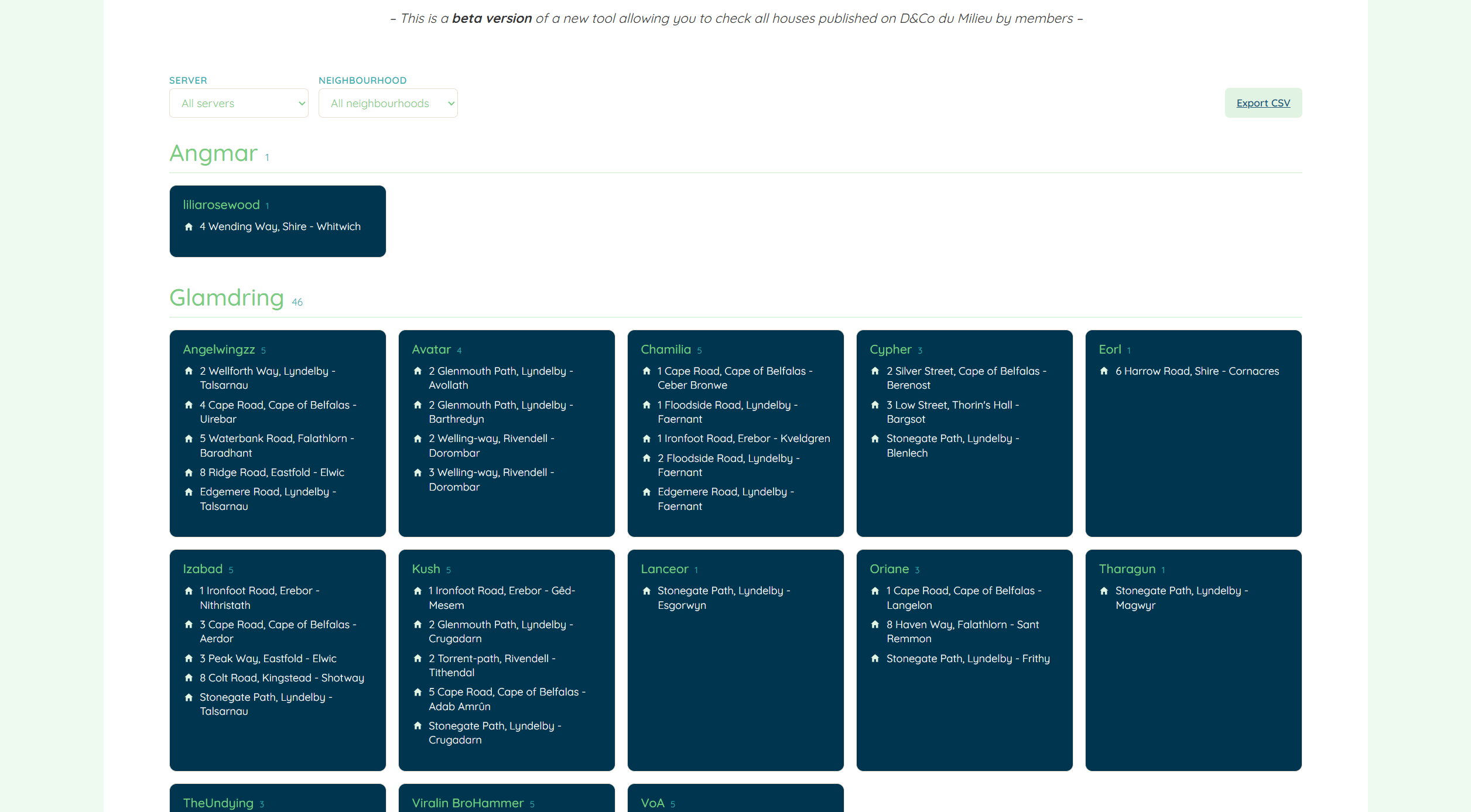
A brand new page that gathers every house shared by our members, neatly grouped by server, then by player. Instead of hopping from profile to profile, you get the full picture in one place, which is perfect for planning an evening of visits on your own world.
New: Smart address fields on your profile
Filling in your houses is now much easier (and much cleaner). When you edit your profile, the address box suggests real LOTRO addresses as you type, so a quick "1 Long..." brings up "1 Long Street, Bree" right away. A second box lets you add your neighbourhood name (the instance, like "Longholm") if you want to. A small preview shows the final result before you save. You can list up to 10 houses.
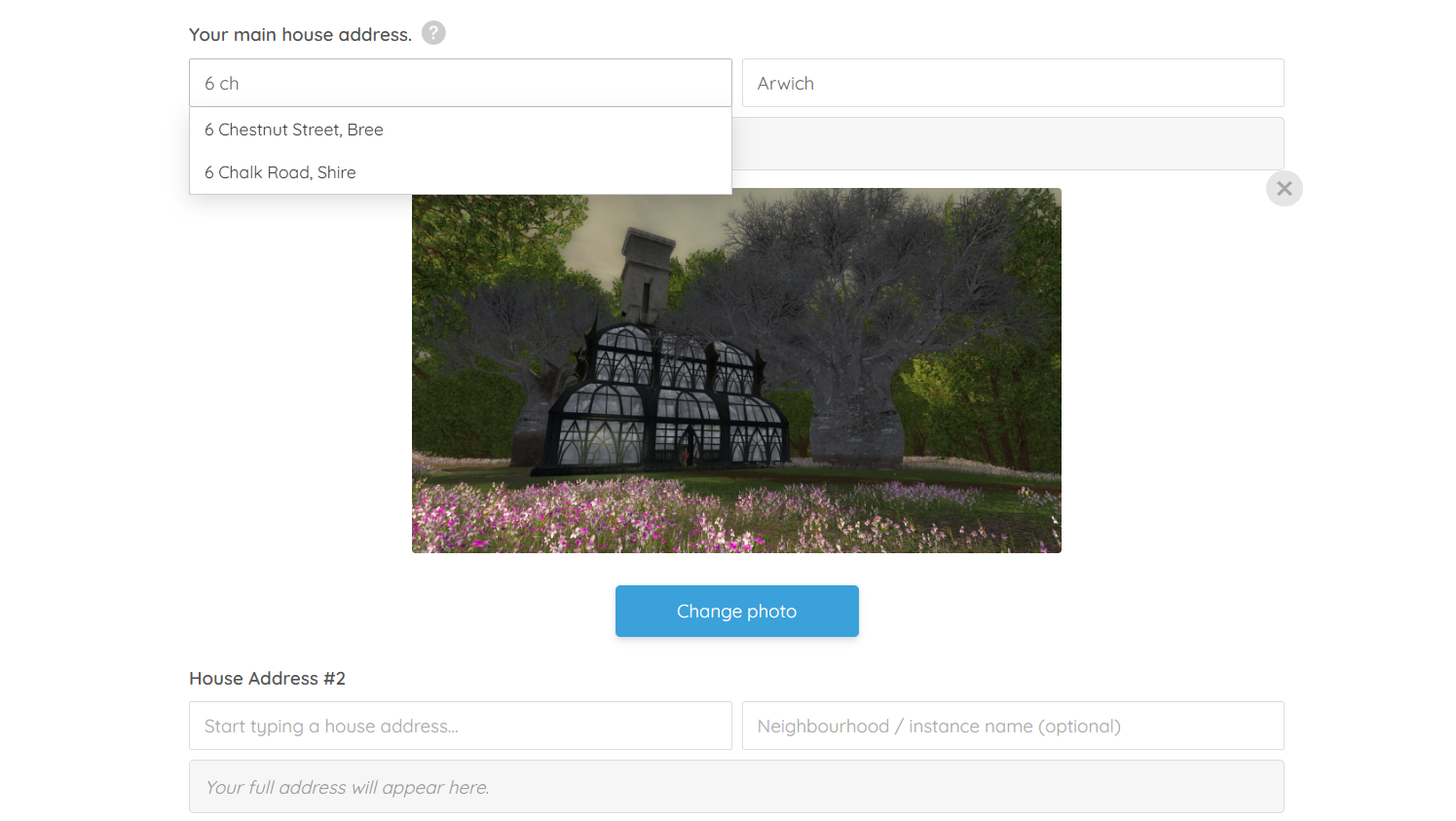
Because addresses are picked from a validated list, the directory stays tidy and searchable, no more mystery entries or typos to squint at.
Filters and export
On the directory page you can filter by server and by housing area, so a player looking to visit a dozen homes on their own world can get straight to the point. Need the list offline? A one-click CSV export is right there.
Happy visiting, and as always, feel free to share your favourite finds with the community.
User Guide
Adding your houses to your profile
- Go to your profile and click Edit.
- Find the house address fields (you can fill in up to 10 houses).
- In the first box, start typing an address and pick one from the suggestions. The address must come from the list, so if the box border turns red, it means the address is not recognised yet, keep typing or choose a suggestion.
- In the second box, type your neighbourhood / instance name, for example "Longholm". This part is free text and never filtered, so spelling is up to you.
- Check the preview line underneath. It shows exactly what will be saved, for example: "1 Long Street, Bree - Longholm".
- Repeat for any other houses, then click Update Profile.
That is it. Your houses now appear in the House Directory.
Browsing the House Directory
- Open the House Directory page (available from the Members Menu).
- Houses are grouped by server, and within each server, by player. Each player card lists their houses.
- Use the Server filter to show only the world you play on.
- Use the Housing area filter to show only houses in a given area (Bree, Shire, Falathlorn, and so on). You can combine both filters.
- Want a copy to keep? Click Export CSV to download the full list (it opens straight in Excel or any spreadsheet app).
Tips and FAQ
- My address will not save. The first box only accepts addresses from the list. Pick one from the suggestions rather than typing it fully by hand.
- Where do I put my neighbourhood name? In the second box, after choosing your address. It is optional.
- I do not see my houses in the directory. Make sure you saved your profile, and that your server is filled in. If you had old addresses, re-enter them with the new address box.
- Can I list houses on different servers? The directory groups by the server set on your profile. Houses are listed under that server.
- How many houses can I add? Up to 10.
All of these new features are still in beta, but they should still work. The design isn't final, and I highly encourage you to report any bugs you might find on this new page or while editing your profiles. Have fun!



One Response
This is wonderful!!